How to Back Up a WordPress Website: 5 Easy Ways to Protect Your Data

Introduction
Imagine spending months building your WordPress website, publishing valuable blog posts, attracting visitors, and growing your business, only to lose everything because of a technical error, hacking attack, or accidental deletion. Losing website data can affect your traffic, customer trust, and business operations. This is why learning how to back up a WordPress website is essential for every website owner.
A WordPress website backup is a copy of your website files, database, themes, plugins, images, and other important information. If something goes wrong, you can use this backup to restore your website and reduce downtime. Whether you run a personal blog, business website, portfolio, or online store, regular backups help protect your digital assets.
In this guide, Parallax Hosting explains five easy ways to back up a WordPress website, how to choose the right backup method, and the best practices to keep your website data safe
Why Is It Important to Back Up a WordPress Website?
Backing up your WordPress website is one of the most important steps in website maintenance. Websites can experience unexpected problems, including malware infections, server failures, software conflicts, failed updates, and human errors. Without a recent backup, recovering your website may take considerable time, money, and technical effort.
Regular WordPress backups help you restore deleted files, recover lost content, and return your website to a working condition after a security incident. They are especially important for e-commerce websites that manage customer orders, product information, and business transactions. A reliable backup strategy also supports business continuity by reducing the risk of permanent data loss.
What Should You Include in a WordPress Website Backup?
Before choosing a backup method, it is important to understand what needs to be saved. A complete WordPress website backup should include both website files and the WordPress database.
Website files include WordPress core files, themes, plugins, uploaded images, videos, documents, and custom code. The database stores your posts, pages, comments, user information, website settings, and other dynamic content. If you back up only your files or only your database, you may not be able to restore your entire website properly.
For better protection, create complete backups that include both components. Store your backup copies in a secure location separate from your live website whenever possible.
5 Easy Ways to Back Up a WordPress Website
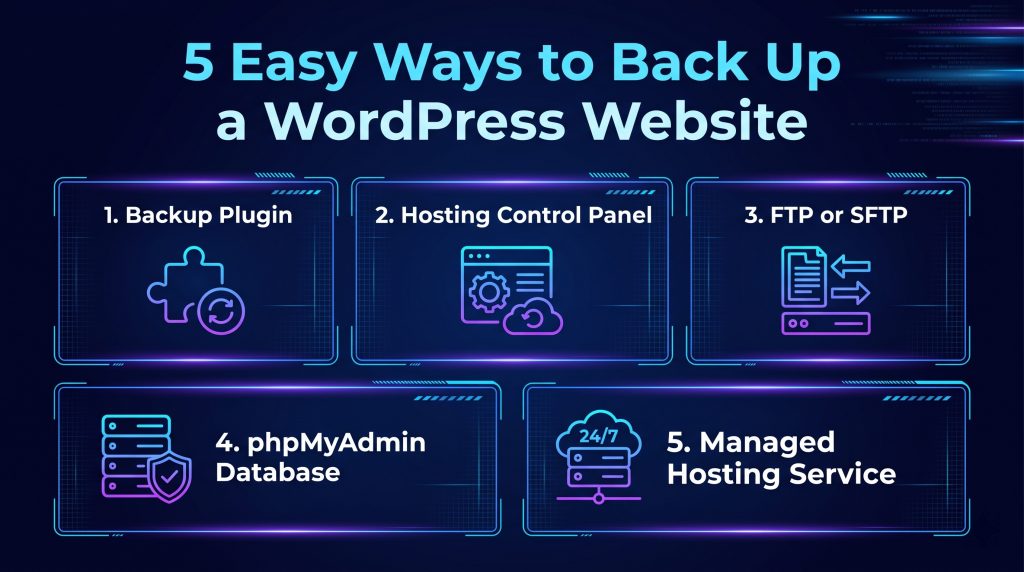
Parallax Hosting helps businesses establish a reliable online presence with hosting solutions designed to support website performance and management. When selecting a hosting solution for your WordPress website, review the available backup features and choose a plan that matches your website’s data protection requirements. Regardless of your hosting provider, maintaining an independent backup is a smart additional safeguard.
How Often Should You Back Up Your WordPress Website?
The ideal backup frequency depends on how often your website changes and how much data you can afford to lose.
For a personal blog or a small business website that changes occasionally, weekly backups may be sufficient if you also create a backup before major updates. For websites that publish content daily, receive frequent enquiries, or regularly update their pages, daily backups are a better option. E-commerce websites and membership platforms may need more frequent database backups because orders, payments, user registrations, and other records can change throughout the day.
It is also important to create a fresh backup before updating WordPress, installing new plugins, changing themes, or modifying important website settings. A recent backup gives you a recovery point if the changes cause errors or compatibility problems.
Best Practices for Keeping WordPress Backups Safe
Creating a backup is only the first step. You must also store it securely and ensure that it can be restored when needed.
Follow the 3-2-1 backup rule: Keep at least three copies of your important data, store them on two different types of storage, and keep one copy off-site. For example, you could maintain your live website, a backup on separate storage, and another encrypted copy in a secure cloud location.
Automate your backups: Schedule backups based on how frequently your website changes. Automation reduces the chance of missing important backup sessions.
Store backups away from your live website: If backups are stored only on the same server, a server failure or security breach could affect both your website and your backups. Use separate storage whenever possible.
Protect backup files: Backups may contain sensitive customer details, user information, and website configuration data. Restrict access, use secure storage, and apply encryption where appropriate.
Test your backups regularly: A backup is useful only if it can be restored successfully. Test restoration in a staging environment or another safe location to verify that your website files and database work together correctly.
Keep multiple backup versions: Retaining several dated backups can help you recover from problems that were not discovered immediately, such as malware that remained on a website for several days.
Create a backup before major changes: Always save a fresh copy before updating WordPress, plugins, themes, or custom code.
Common WordPress Backup Mistakes to Avoid
One common mistake is backing up only website files without exporting the database. This can leave you without important posts, pages, settings, and other content. Another mistake is saving every backup on the same server as the live website, which creates a single point of failure.
Some website owners also assume that a backup is reliable without checking whether it completed successfully. Others keep only one old backup or discover too late that their restoration process does not work.
To avoid these problems, create complete backups, store copies in separate locations, maintain multiple versions, and test restoration periodically. You should also understand your hosting provider’s backup policies rather than assuming that every hosting plan includes automatic backups.
How to Restore a WordPress Website From a Backup
If your website stops working after an update, suffers a malware infection, or experiences accidental data loss, a backup can help you recover it. The restoration process depends on how the backup was created and which tools are available.
If you use a backup plugin, open its restoration interface and follow the instructions to restore the required files and database. If your hosting provider offers a backup manager, use the documented restoration process. Manual restoration may involve uploading the website files and importing the database through phpMyAdmin or another database management tool.
Before restoring an older backup, save a copy of the current website if possible. This can preserve recent data for investigation or recovery. For online stores, membership websites, or sites that receive frequent submissions, be especially careful because restoring an older database may remove newer orders, registrations, or customer activity.
If you suspect your website has been hacked, do not simply restore an infected backup without investigating the cause. Remove the security threat, update vulnerable software, change compromised credentials, and verify that the restored website is clean. If you are unsure how to proceed, contact your hosting provider or a qualified WordPress professional.
Conclusion
Backing up your WordPress website is a simple but essential part of protecting your online presence. Whether you choose a backup plugin, your hosting control panel, FTP or SFTP, phpMyAdmin, or an automated hosting backup service, the most important thing is to create complete backups consistently and keep them secure.
Remember to back up both your website files and database, store copies outside your live server, and test your restoration process regularly. These steps can help you recover from unexpected problems, minimize downtime, and protect your website’s valuable data.
At Parallax Hosting, we understand the importance of building and maintaining a reliable online presence. Explore our hosting solutions to find an option that supports your website’s performance, security, and growth.
Ready to build a more reliable website? Visit Parallax Hosting to explore hosting solutions for your online business.
Frequently Asked Questions (FAQs)
1.How do I back up a WordPress website?
You can use a backup plugin, hosting control panel, FTP/SFTP, or phpMyAdmin.
2.What is the easiest way to back up WordPress?
A backup plugin like UpdraftPlus makes creating website backups simple.
3.How often should I back up my WordPress website?
Back up weekly for less active websites and daily for frequently updated websites.
4.Does WordPress automatically back up my website?
No, WordPress does not create complete backups by default. You need a plugin or hosting backup service.
5.What should a WordPress backup include?
It should include website files, themes, plugins, media uploads, and the database.
6.Can I back up WordPress without a plugin?
Yes, use your hosting control panel, FTP/SFTP, and phpMyAdmin.
7.Where should I store WordPress backups?
Store backups securely in separate storage, such as cloud storage or an external drive.